


Hey! Let’s get to the heart of the matter. Managing backups isn’t just about clicking a button and hoping for the best. It’s mostly about organization so you don’t end up with files everywhere or, worse, useless files.
The 3-2-1 rule is the base
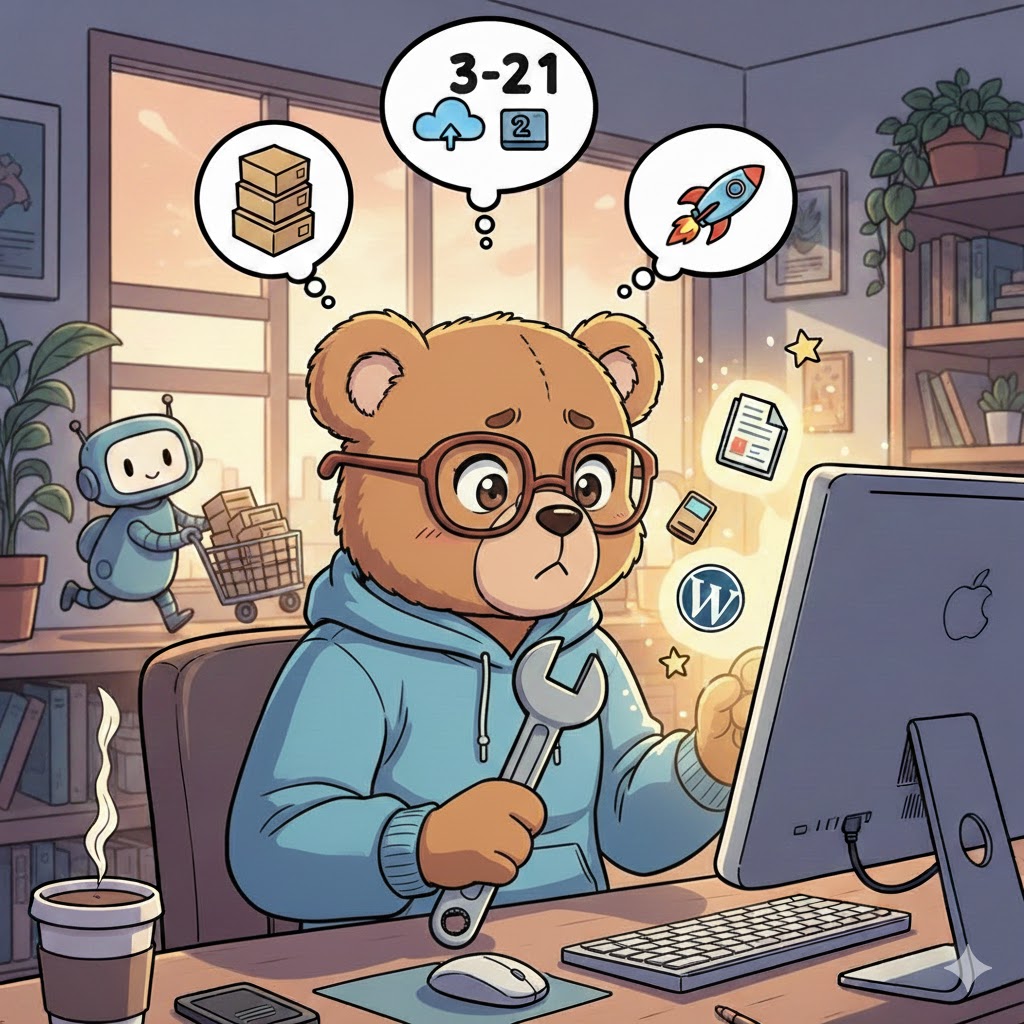
It’s an old tech trick but it’s the safest way to secure your site. Basically, the idea is to have three copies of your data. You store them on two different media (like your server and a hard drive) and you keep one off-site, in the cloud.
If you do this, you’re almost invincible. Even if your host goes down and your house floods, your site is still somewhere on a secure server. It’s a bit paranoid, but when you’ve spent hours on your WordPress content, you don’t want to redo everything. Bottom line, it’s the bare minimum for a good WP backup.
Automate so you don’t forget
We know how it goes: at first, you’re motivated and you do your backups manually every Monday. And then, after a month, you forget. So, it has to be automatic.
On WordPress, you can set this up to run by itself at night when no one is on the site.
I set the frequency based on my activity. If I post every day, I do a daily database backup. For files (images, themes), once a week is plenty, since they change less often. There you go, it runs in the background and you don’t think about it anymore. Anyway, to set this up easily, you can use a plugin like UpdraftPlus which handles the cloud upload for you.
Clean up your backups
The classic trap: your storage space gets full because you’re keeping 200 copies of your site. Eventually, it gets expensive or blocks everything. You have to know when to toss them. Personally, I keep the last four weekly versions and the last monthly version.
No need to keep what you did six months ago, unless you’re really nostalgic. Most tools let you set a limit. You tell it “keep 5 copies” and as soon as it makes a new one, it deletes the oldest. It’s clean and avoids a mess in your external storage.
Watch out for heavy plugins
You have to be careful what you put in the backup. Sometimes, without knowing it, you’re saving huge cache folders or temporary files that are useless. It bulks up the file for nothing and makes restoration super slow, especially if your internet connection isn’t great.
Before you start, make sure you exclude the cache folders from your optimization plugin. Your site doesn’t need them to restart; it will recreate them on its own. Also, if you have heavy videos, try to store them elsewhere (YouTube, Vimeo) rather than in your media library. It’ll make your backups much lighter and easier to handle if something goes wrong.
Restoring is the real test
Managing backups is also about knowing how to reinstall them. A backup file you don’t know how to use is just dead weight. I recommend testing the process at least once a year. Create a “clone” site on a subdomain and try to push your backup there to see if everything comes back up correctly.
That’s when you see if your SQL files are complete or if some images are missing. It’s nice to realize everything works when you’re not in a rush. Otherwise, the day your site crashes in the middle of the afternoon, you’ll panic and make mistakes.
There you have it, that’s how I see it. It’s not rocket science, you just have to be a bit organized at the start. Once it’s in place, you don’t need to touch it anymore. You can focus on your content and events without that little voice in your head asking if you’ve saved everything.
- 3-2-1 Rule: 3 copies, 2 supports, 1 off-site.
- Automation: Let the tool do the work at night for you.
- Rotation: Delete old backups to save space.
Basically, don’t wait too long to set this up. It takes 10 minutes today, but it’ll save you days of trouble later.